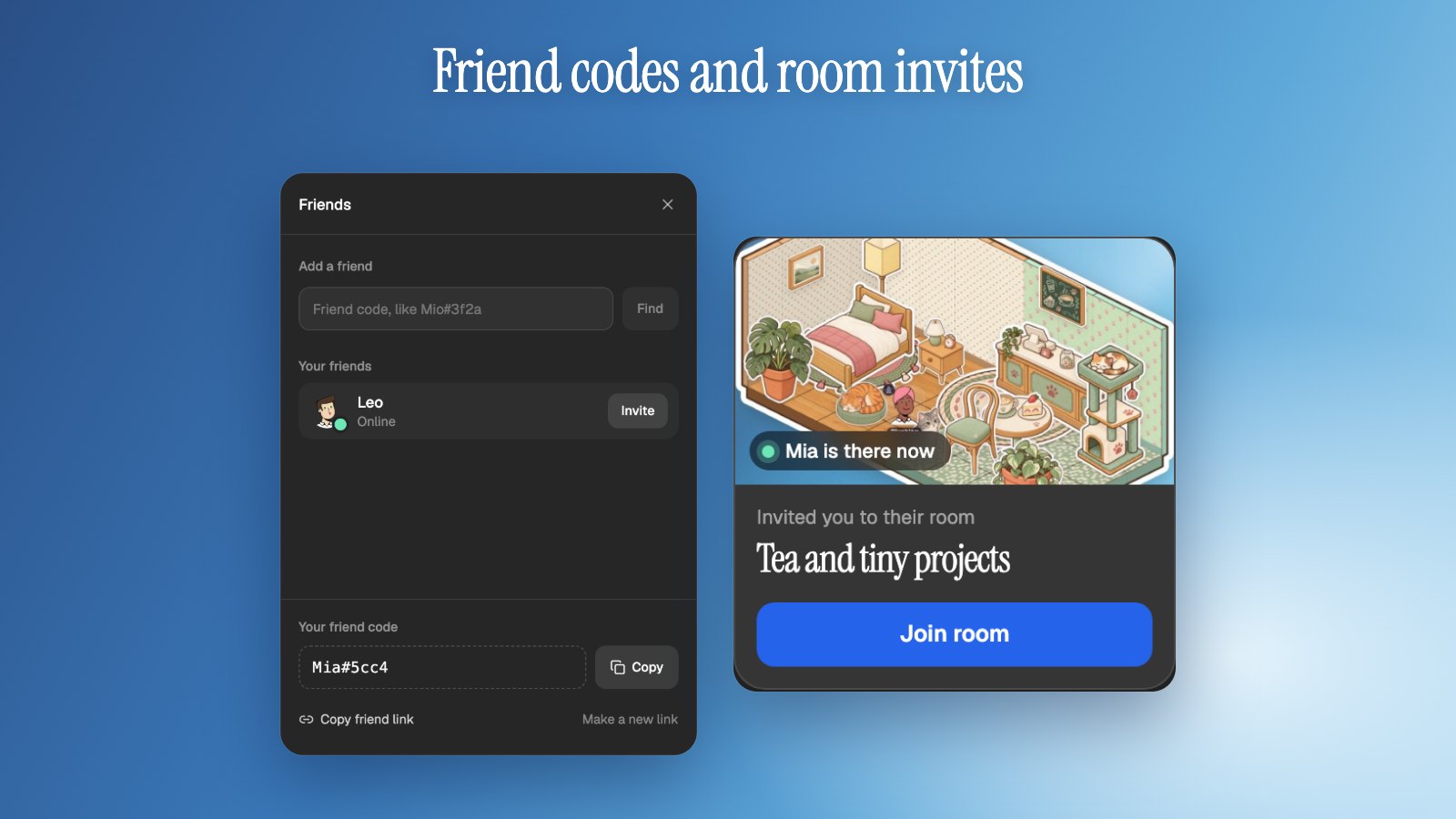
 Friend codes and room invites
Glint update: friend codes, room invites and a tidier top menu
Add friends with a friend code, invite them straight into your room from messages, a new top right menu on your spaces, a proper friend link page, nicer messages with trending GIFs, and friends on the iPhone app.
 By Mario Jankovic 4 min read
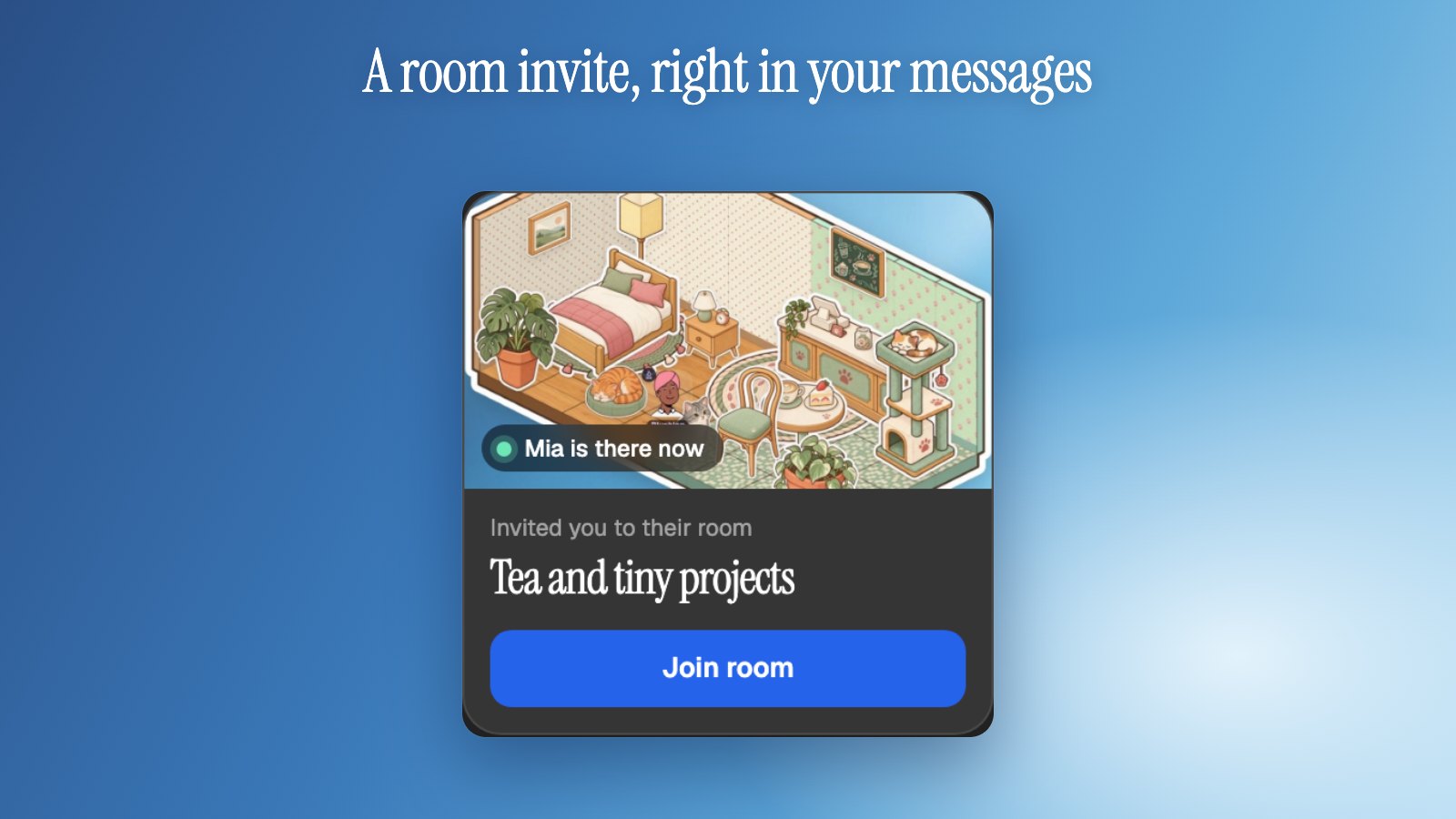
Last week Glint got friends. This update is about the two things that came up most since then: finding each other, and getting each other into the same room. You now have a friend code you can say out loud, and you can invite a friend into your room the way you’d invite them to a game. The invite lands in their messages as a card with your room’s picture and a Join button.
What’s new in this update?
| What | Where to find it | What it does |
|---|---|---|
| Friend codes | Bottom of the Friends panel | A short code like Mia#3f2a that anyone can type to find you |
| Add a friend | Top of the Friends panel | Type a friend code or paste a friend link |
| Room invites | Friends panel, a friend’s card, or your chat with them | Your friend gets a card with your room and a Join button |
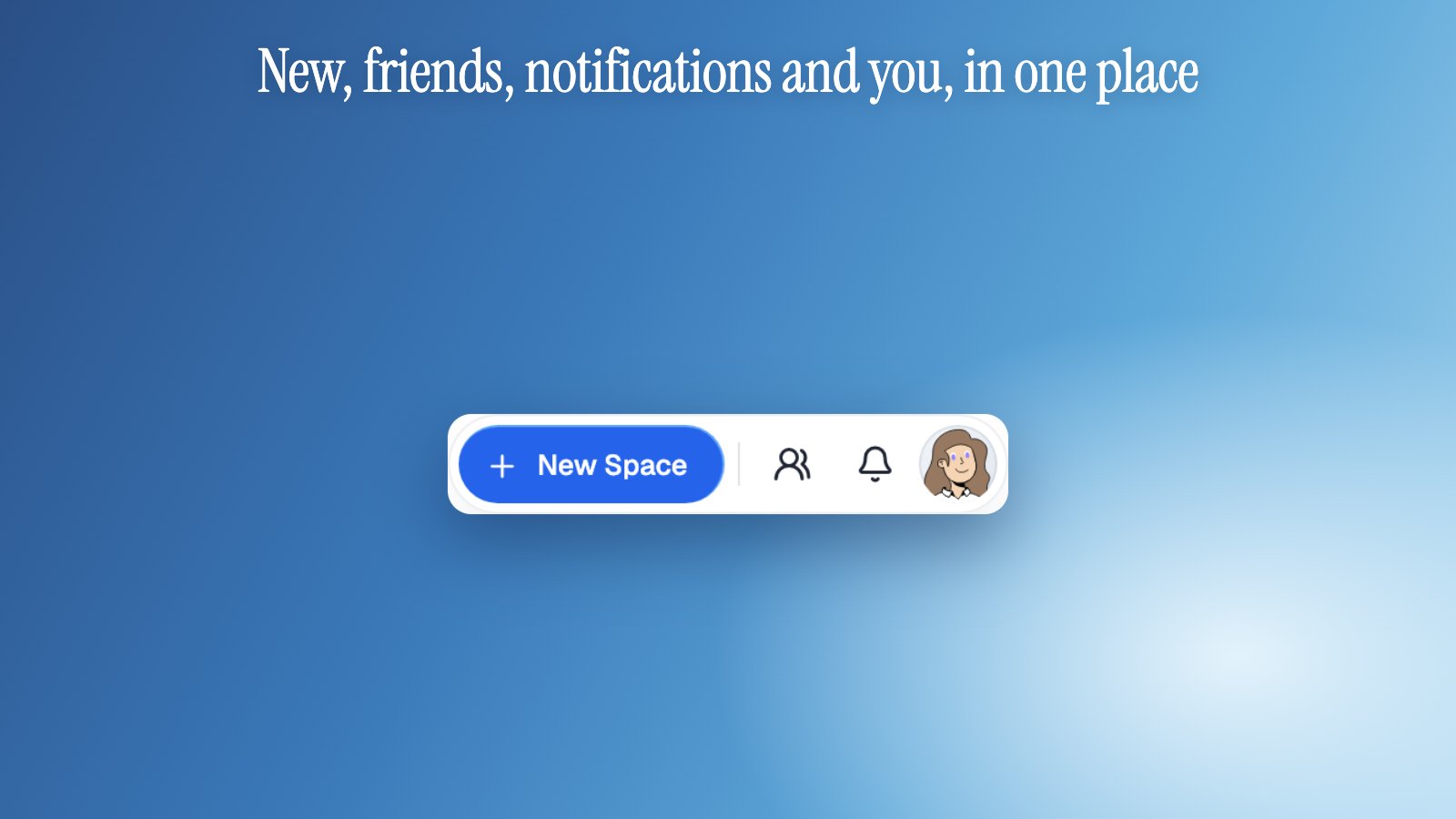
| Top right menu | My Spaces | New, Friends, notifications and your account in one place |
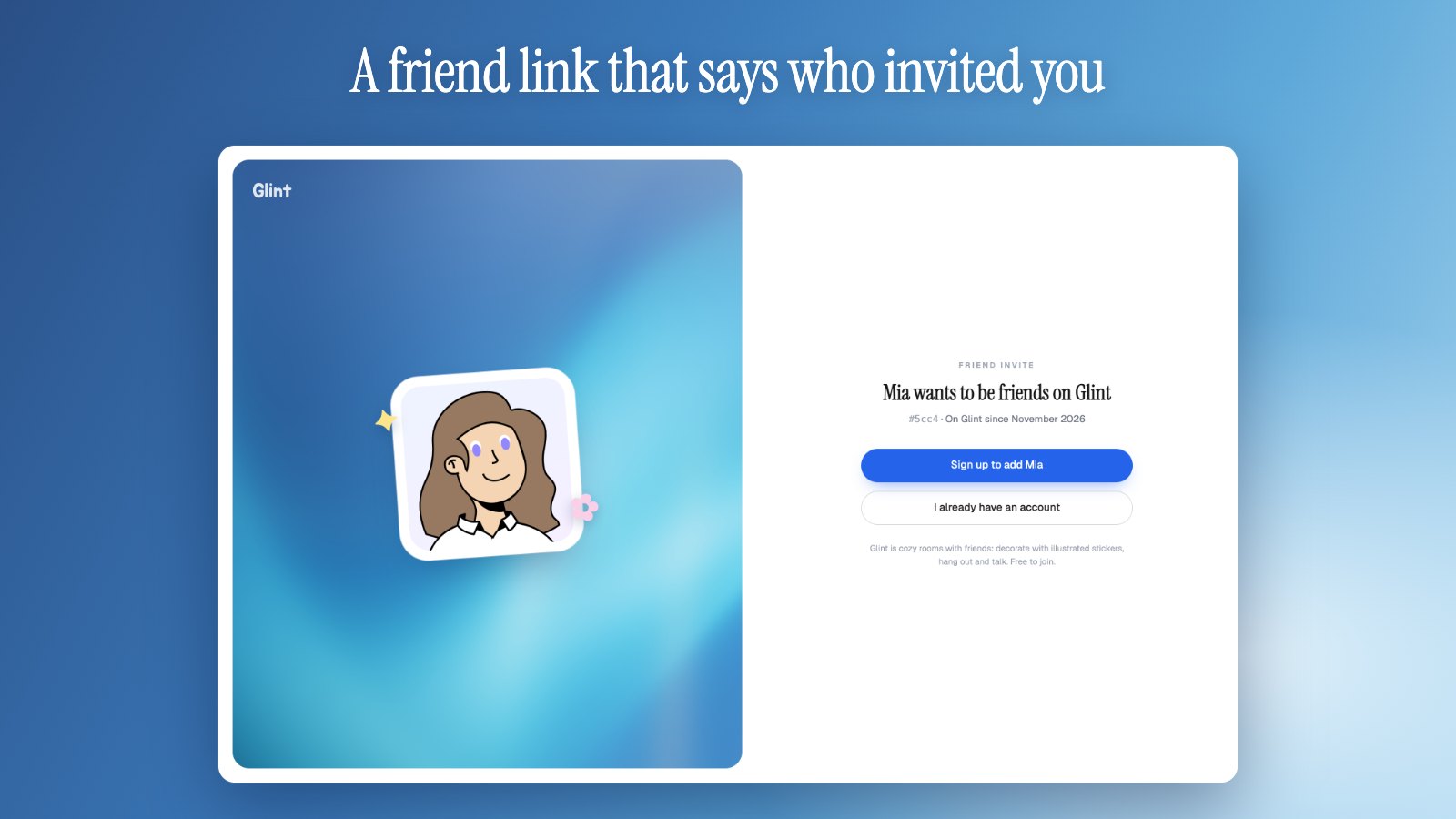
| Friend link page | When someone opens your friend link | Shows who invited them, with one clear next step |
| Messages | The Friends panel | A cleaner look, and GIFs that open on what’s trending |
| iPhone app | The next App Store update | Friends, messages, notifications, friend codes and room invites |
What is a friend code?
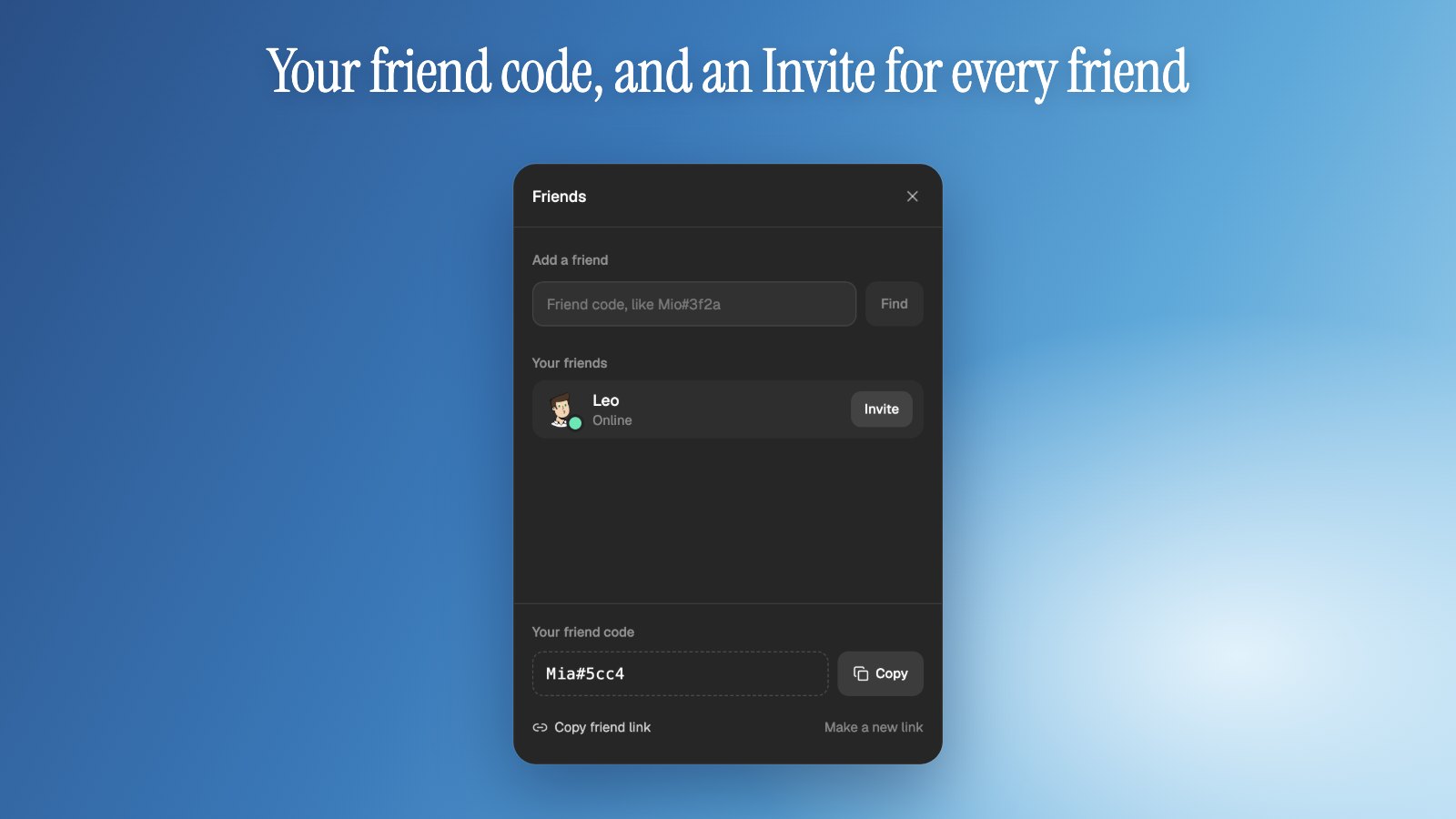
It’s your name plus four characters, like Mia#3f2a, the way game accounts have a tag. You’ll find yours at the bottom of the Friends panel with a Copy button next to it. A friend types it into Add a friend at the top of their panel, presses Find, and adds you from there. Capitals and the space before the # don’t matter. If two people happen to share a code, both show up and your friend picks the right one.
Friend links still work too. Copy friend link sits right under your code, and Make a new link retires the old one if it ended up somewhere it shouldn’t.
How do I invite a friend to my room?
While you’re in a room, open Friends and every friend has an Invite button. You can also open a friend’s card and choose Invite to your room, or tap Invite Leo to Tea and tiny projects above the message box when you’re chatting with them.
Your friend gets a card in their messages with your room’s picture, its name and a Join room button. If you’re still in the room, the card says so with a little green dot, so they know someone is waiting. If they’re online they also get a pop up, and on the iPhone app a notification that says which room.
Invites follow the same rules as your room’s link. From a public room or a link room, anyone in it can invite their friends. In a private room only you, the owner, can invite, and your invite lets your friend in without any extra link. If the room is deleted later, the card says it isn’t available anymore.
What changed on My Spaces?
The buttons in the top right are now one small menu: New, Friends, notifications and your account, side by side. It works the same on phones, and new requests and notifications show right on their icons.
What happens when someone opens my friend link?
They land on a proper page instead of a bare card: your avatar as a little sticker on the Glint gradient, your name, and one clear button. Someone without an account can sign up and comes right back to add you. If you already sent them a request, the page offers Accept, and once you’re friends it offers Message instead. An old or retired link says so, and suggests asking for a new one or for your friend code.
What’s new in messages?
Messages got the same look as the rest of Glint. The GIF picker now opens on trending GIFs instead of an empty search, and searches as you type. Room invites show up here as cards, and your list of conversations says Room invite with the room’s name, so they’re easy to spot.
Is this on the iPhone app too?
Yes. The iPhone update with friends, messages, notifications, friend codes and room invites is with Apple for review, and arrives as soon as it’s approved. On the iPhone you invite friends from Invite a friend in the room menu, and invites from your friends show up as the same cards.
Is it free?
Yes. Friends, friend codes, messages and room invites are free for everyone, like the rest of Glint. Open app.glint.so, share your friend code and invite someone over.
Written by
Mario Jankovic
Mario makes Glint, a cozy browser app where friends build rooms together and hang out in them. He writes here about spending time with people you love online, and about everything new in Glint.
Reading Progress
0 min read
Keep reading
Glint update: friends, plans and little things to do together
Add friends and see who is around, message them from any room, plan a night together with invites and reminders, and play with polls, a shared timer, a photo booth and new camera effects.

Glint update: a free Halloween series, plus dogs, ducks and geese
A free Halloween sticker series for October, 16 new pets across every series, and stickers that now sit neatly on the room grid. Here is what changed in Glint.
Glint update: walk around your room with W A S D, jump, and set your own keys
Walk your avatar around a Glint room with W A S D or the arrow keys, tap Space to jump, and change the keys in Controls. Plus a camera that follows you or a friend.
Ready to try these features?
Glint is free and runs in your browser. Make a room, decorate it with stickers and invite your friends.