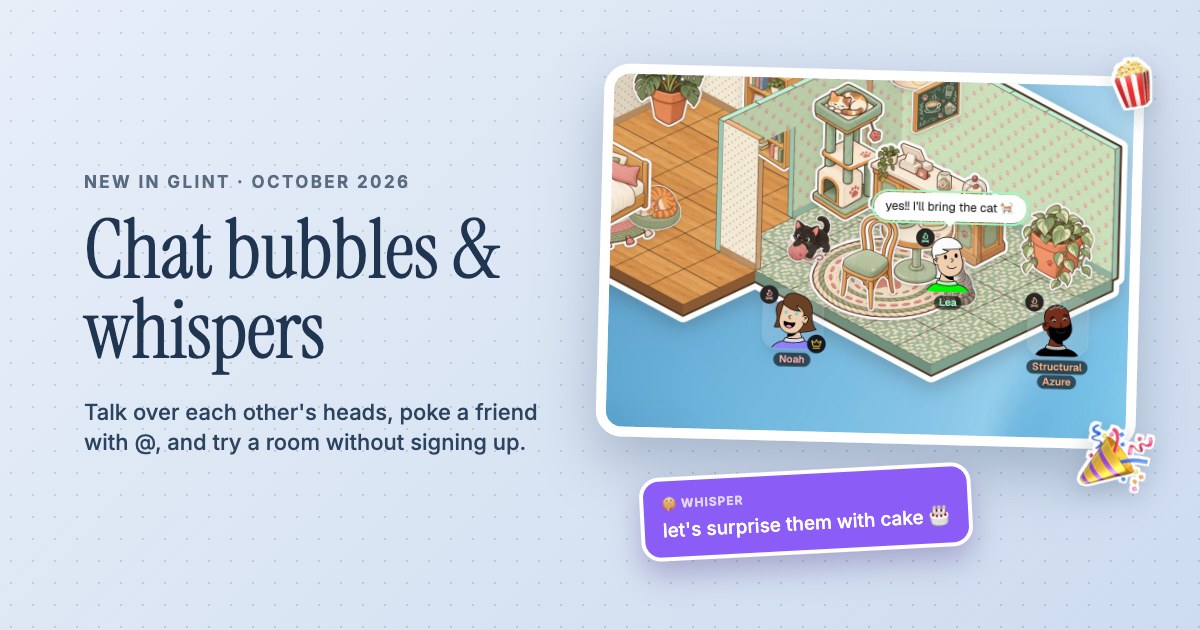
 Chat bubbles, whispers and Try it out
Same room.Different to-do lists.
Bring your own work and someone you like working alongside. Keep notes, files and screen sharing close, with a place for the conversation in between.


 Project refs
 brief.pdf
 figma.com
 refs.png
- A room for people you invite
- Notes and files beside the work
- Voice and screen sharing when needed
Make a place for working alongside each other
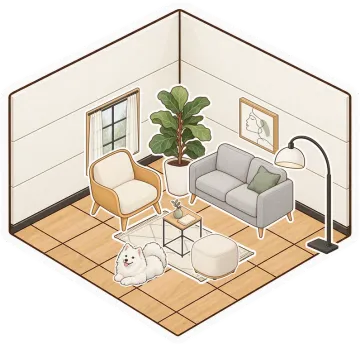
Build a small studio, add a desk for each person and decide how you want the session to feel. You might keep voice on while you work, use chat for questions or take a break together after a quiet stretch. Glint doesn't decide the schedule for you. The room gives the people you already know somewhere to meet, and you can keep using that same place for the next project session.
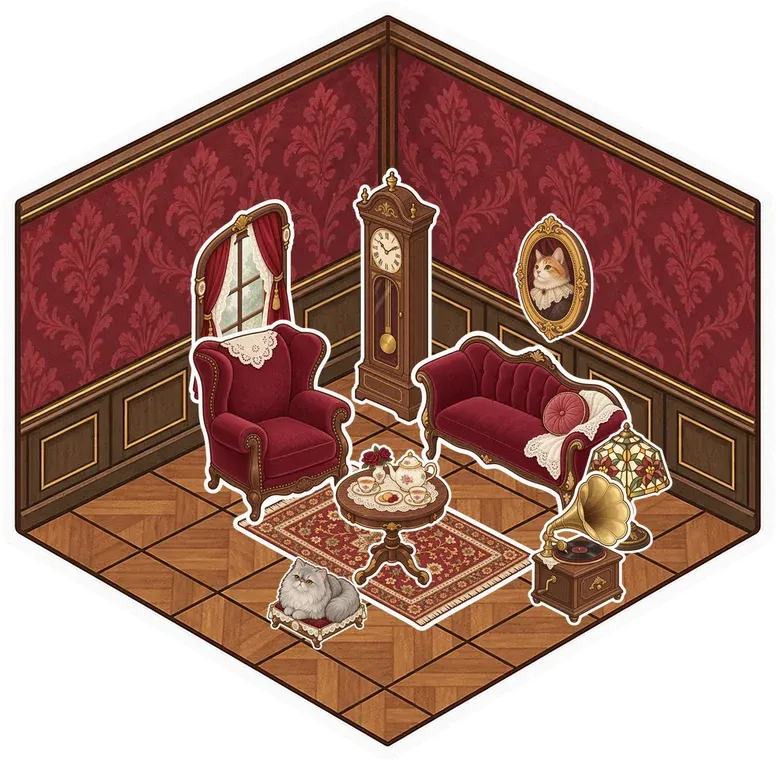
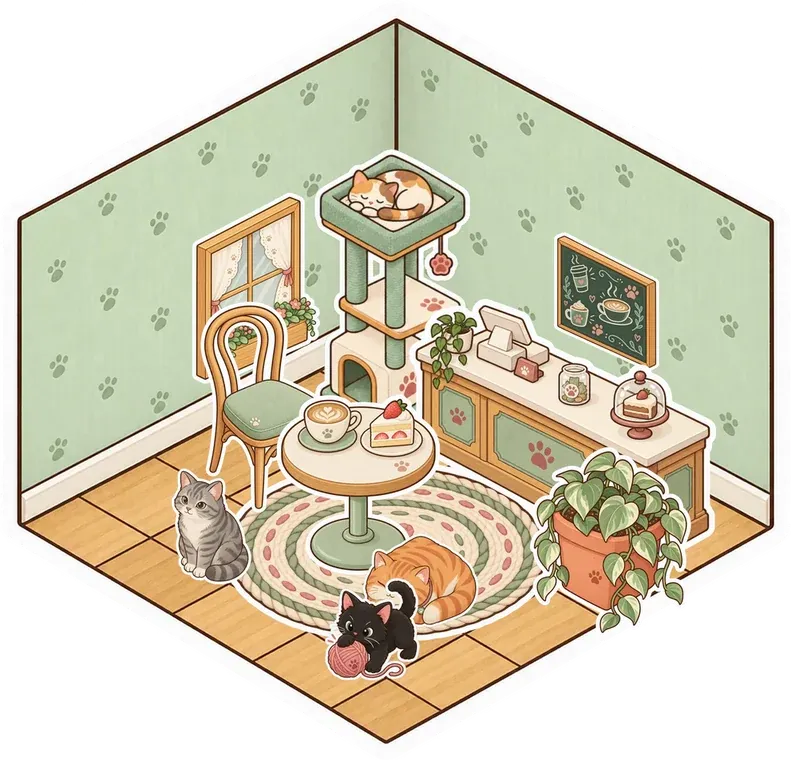

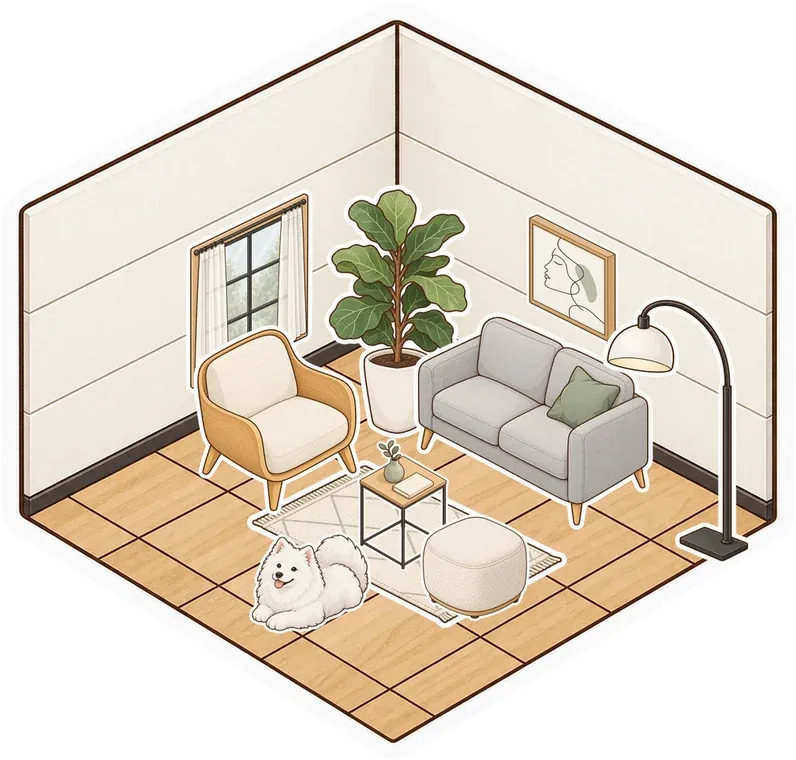
Keep the project close to the conversation
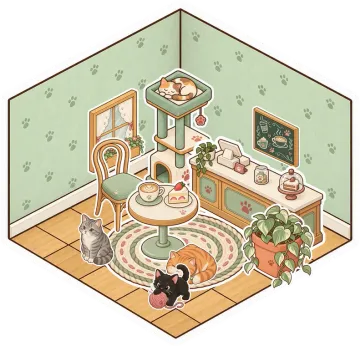
Put a document on the canvas for the next few actions, a note for a question and a folder for reference files. Save useful links alongside them, then arrange the things you return to most near your working corner. A room can hold both the project and the small decorations that make it familiar. When you come back to a saved room, you can find your starting point without rebuilding the workspace each time.

Ask for a second pair of eyes
When you're stuck, mention a friend with @ or turn on your mic and explain. Share a screen to show the draft, the design or the thing that isn't behaving as expected. Use a stage for a group walkthrough and a pop-out window when the details need more space. Then go back to your own work while staying in the room, with the shared files and conversation still nearby when you need them.
A Little Setup.
Then You're Here.
Further reading Use stage pop-outs for a closer look at shared work
-
Set up a shared working room
Create a free account and make a room. Add a simple working corner, a document for your plan and a folder for the links or files you keep using.
-
Invite people you like working with
For a private room, invite your project group from Manage Users. For a public or unlisted room, share its link. Agree when to work quietly and when to talk, then turn on voice or keep questions in chat.
-
Leave the next step in sight
Before you leave, add a note about what to do next and put new references in the folder. Use the same saved room when you're ready for another session.
Questions
Is this for working with friends or meeting strangers?
This setup is for a room with people you invite, such as friends or a small project group. Glint doesn't provide coworking partner matching or an accountability coach.
Can we work on different projects in the same room?
Yes. You can each work on your own thing while using the room's voice or chat. Put separate notes and folders near your own corner, then share a screen when you want feedback.
Can I keep project files between sessions?
Yes. Save the room with a free account, then keep documents, notes, links and uploads there. Folders help you organize references, and everyone who can access the room can open its files.
Is Glint free for a small working group?
Yes. Glint is free with no limits on rooms or members. Voice, shared room tools and screen sharing are included, while some sticker series are optional extras.
There's More in Here.
See every use caseScreen sharing
Show a tab, window or screen while you talk. Use a stage and pop out a larger view when needed.
Shared documents
Keep plans, study notes and checklists beside the conversation. Open a full document when a sticky note isn't enough.
Folders and files
Drop files into room folders, save links and organize documents. Use search, subfolders and the view that suits you.
 Moodboard
 Packing list
 Ideas
Ideas

Make your coworking room
Make something small. Invite your people. See what it turns into.
Make your room for freeFree forever. Nothing to install.