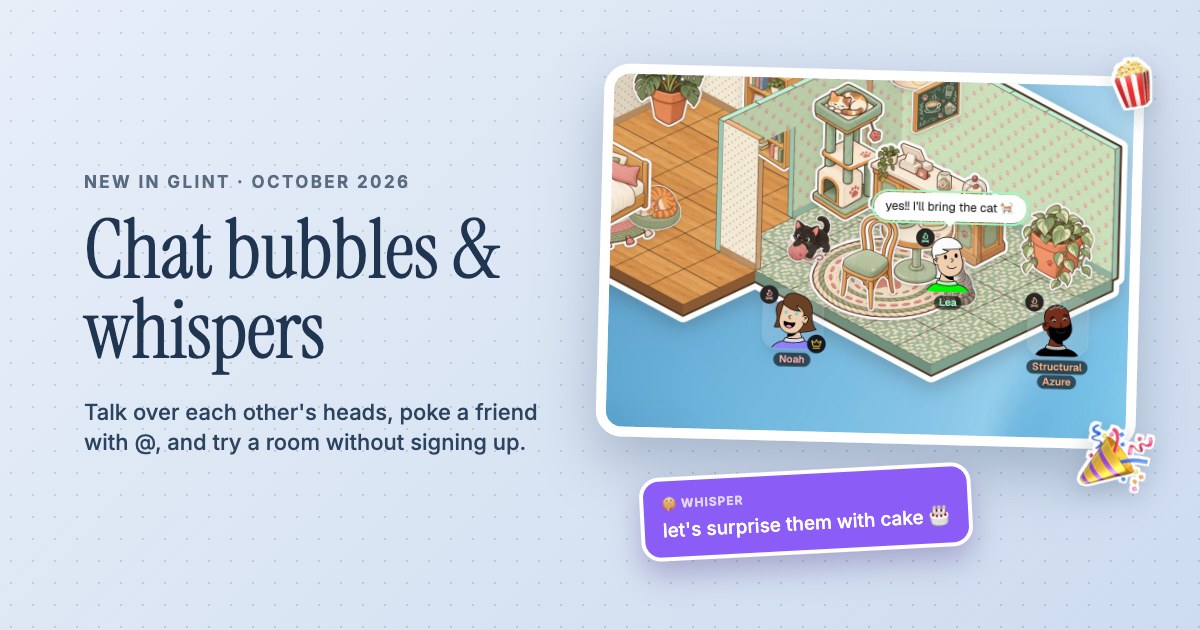
 Chat bubbles, whispers and Try it out
Your things.One shared canvas.
A thought, a photo, a video you have to show someone. Put it all in the room and make a little space for whatever comes next.
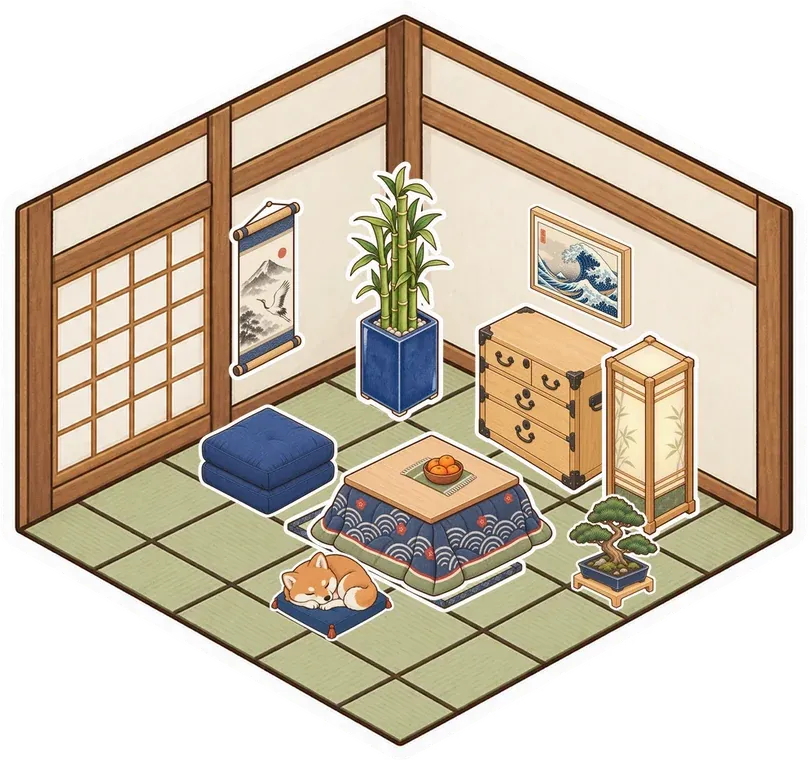

- Notes, pictures, doodles and media
- Live cursors show where friends are
- Saved rooms keep your arrangement
Give an idea a place on the canvas
Open the Board tab in the dock and choose what to add. Use a note for a quick thought, a document for something longer and an image for the thing words don't quite explain. Place a video beside them or add a website to refer to together. You can move and resize objects so the things that belong together stay together, instead of sending everyone through a long string of links.










See each other making things
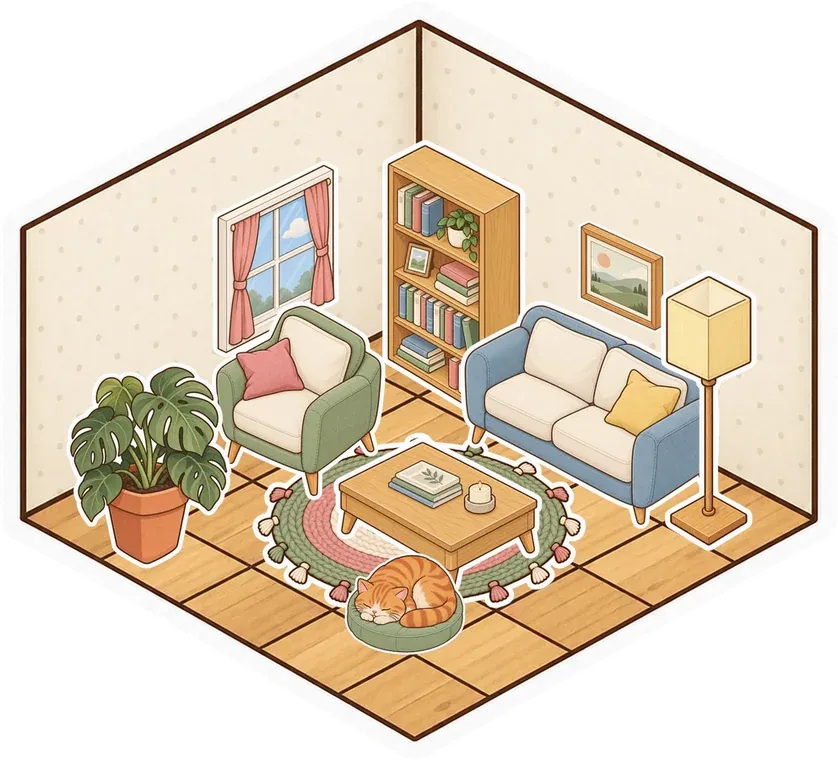
Friends share the same room and can see changes to its canvas. Live cursors help you follow where someone is pointing, and voice or chat gives you a way to talk through what you're doing. Doodle together, rearrange a few pictures or work out where the next room should go. Your avatar stays where you put it while you click and edit, so moving an object doesn't mean moving your place in the room.
Keep the useful mess, tidy the rest
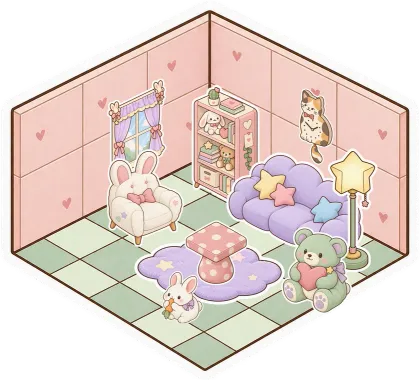
You don't need to turn every room into a clean presentation. Leave the pictures you're choosing between and a note about what to try next. Put reference files in a folder when they start taking over, and lock objects you don't want moved by accident. In a saved room, the arrangement is there when you return. It gives a shared project a place to pick up from, even when you come back on different days.
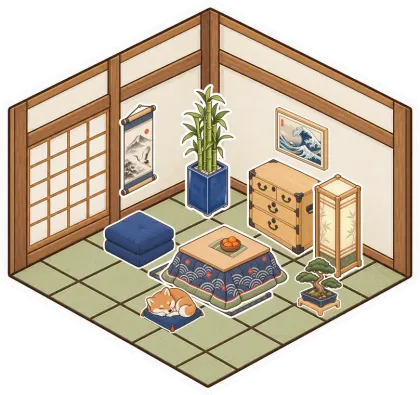
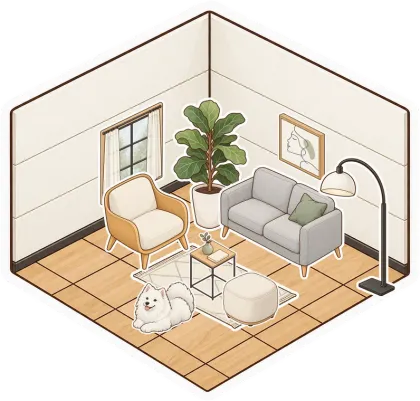

A Little Setup.
Then You're Here.
Further reading Take a closer look at the Board dock and shared rooms
-
Add the first few things
Open Board in the dock and place a note, an image or a document. Start with what you already want to share rather than filling the whole canvas.
-
Arrange them together
Invite a friend to the room and turn on voice. Move related objects beside each other, draw something or point with your cursor as you talk through the idea.
-
Leave a starting point
Write down the next thing to do and put extra files in a folder. Keep the room with a free account so the canvas is ready for your next visit.
Questions
What can I put on the shared canvas?
Glint supports notes, documents, images, PDFs, videos, websites, folders and stages, along with doodles, rooms and stickers. Add things from the dock and arrange them in the space.
Is the canvas only for drawing?
No. Drawing is one part of it. You can build rooms, write notes, keep files and add media on the same canvas, then use voice, video or chat with the people there.
Can I keep people from moving an object?
You can lock individual objects to protect them from accidental movement. This is useful for a room's finished layout, a reference image or something you want to keep in place.
Will the canvas be there when we come back?
Yes, when the room is saved to an account. A try-out room without an account is temporary, so press Keep this room and sign up if you want to return to it.
There's More in Here.
Explore the featuresShared documents
Keep plans, study notes and checklists beside the conversation. Open a full document when a sticky note isn't enough.
Folders and files
Drop files into room folders, save links and organize documents. Use search, subfolders and the view that suits you.
 Summer plans
  Moodboard
 open.spotify.com
 tickets.pdf
 Packing list
 Ideas
Ideas
Room builder
Lay floors, put up walls and add doors. Build a room from scratch or start with a ready-made style.
 Cozy bedroom
  Cat café
 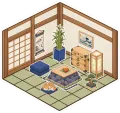 Tea room
 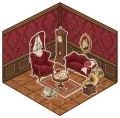 Parlour
 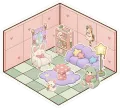 Kawaii
 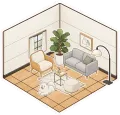 Modern
Start a shared canvas
Make something small. Invite your people. See what it turns into.
Make your room for freeFree forever. Nothing to install.